
Installing OptionsJourney
Using Schwab? Request your Schwab API app first: Schwab takes a few business days to approve it. See Getting your broker API keys.
Download OptionsJourney.zip. That link always gets the latest version. (It is also on the Releases page, under Assets.)
Windows
-
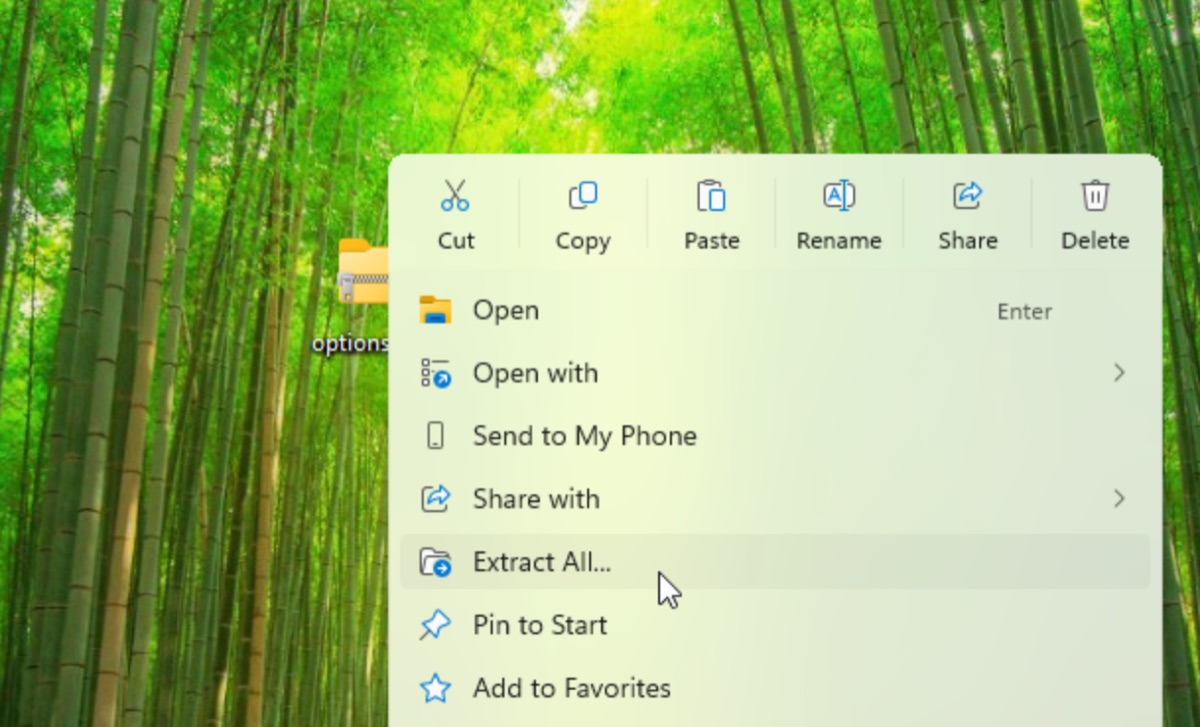
Open your Downloads folder, right-click the zip and choose Extract All…, then Extract.
- Unzip it first. Double-clicking the zip only shows what's inside, and the installer can't run from there.
-
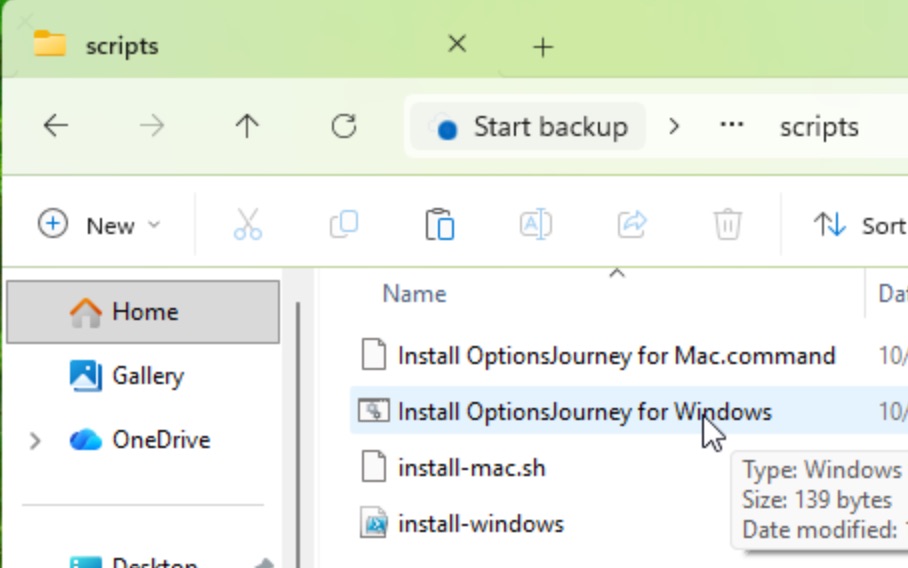
In the folder that opens, open scripts and double-click Install OptionsJourney for Windows.bat.
- If Windows says "Windows protected your PC", click More info, then Run anyway.
-
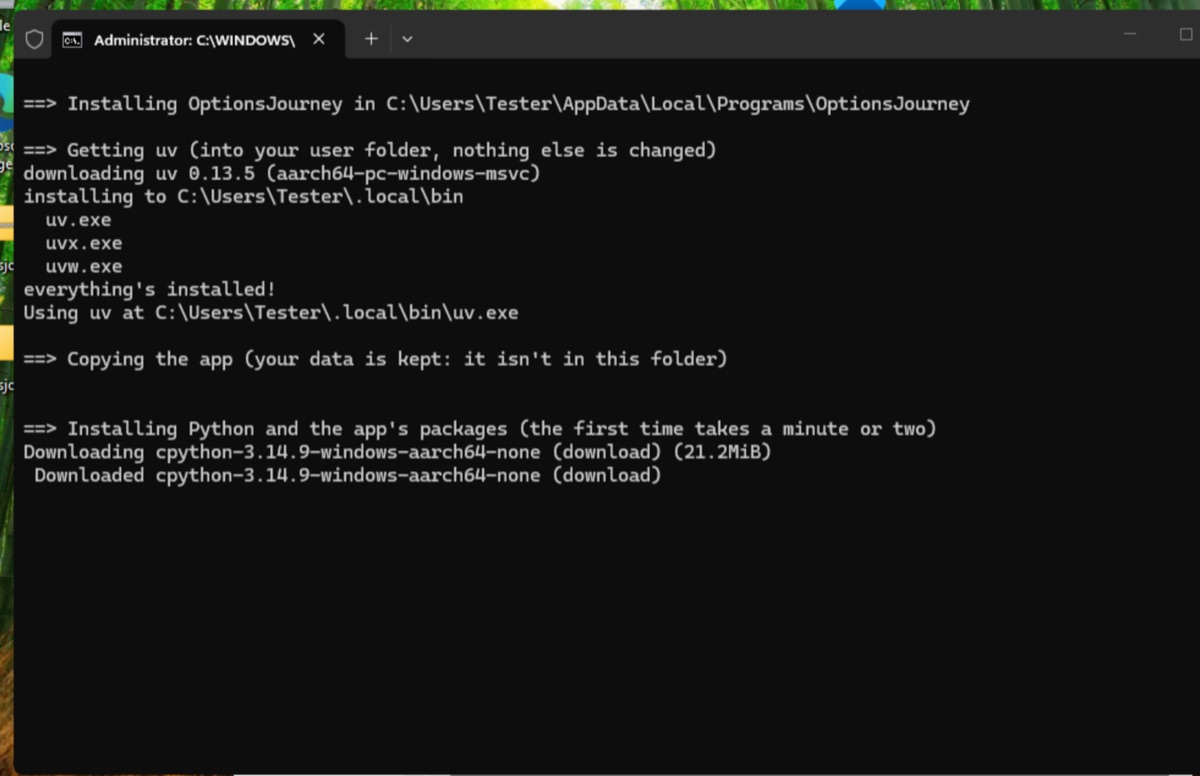
A black window shows the progress. The first install downloads Python and takes a minute or two.
-
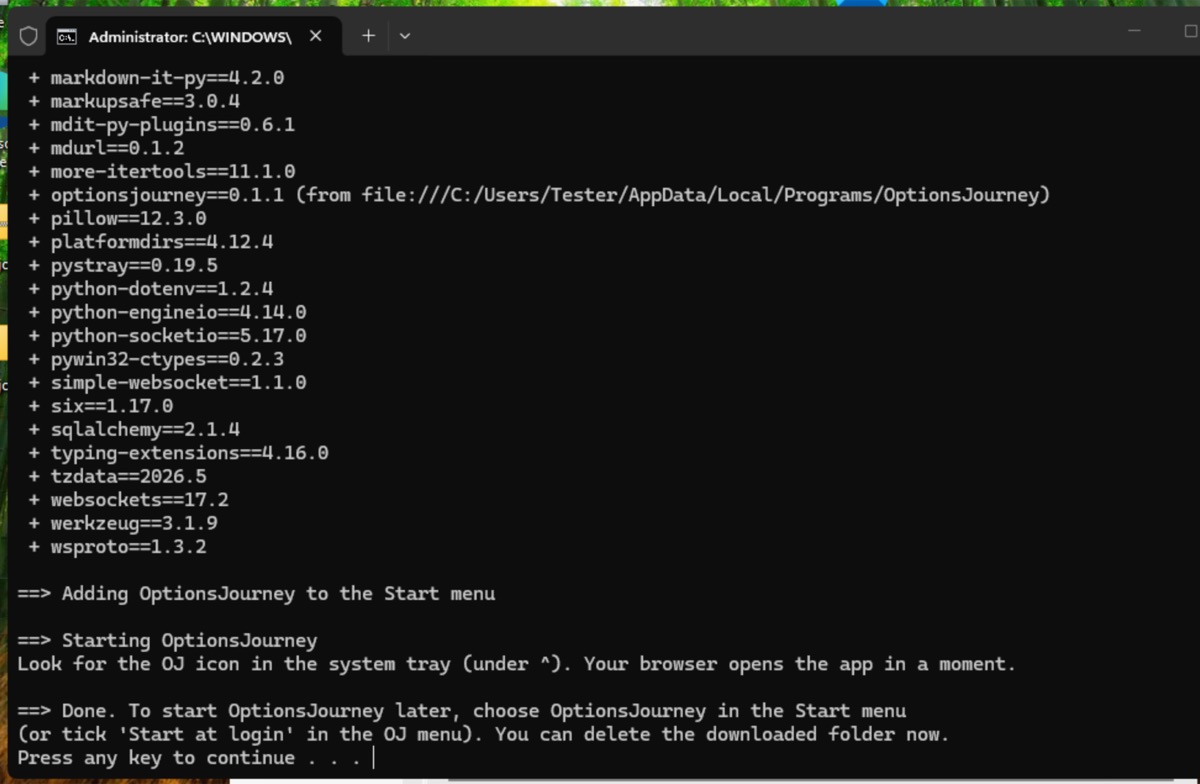
When it says Done, press any key to close the window. A green check-mark icon appears in the system tray at the bottom right (click ^ if you don't see it), and the app opens in your browser. The setup guide takes it from there.
Click the icon any time for the OJ menu:
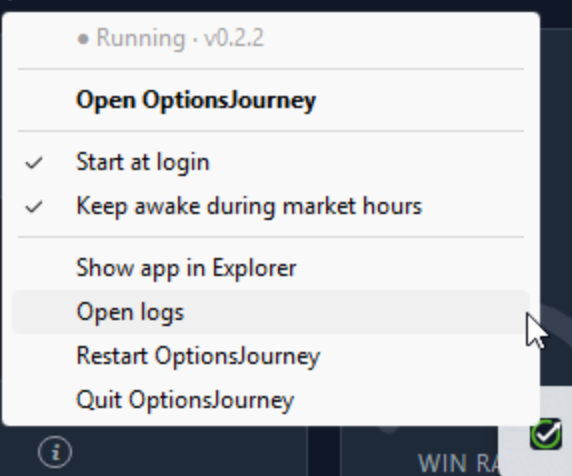
The app is installed in your user folder (AppData\Local\Programs\OptionsJourney), so you can delete the zip and the extracted folder afterwards. To start it again later, choose OptionsJourney in the Start menu.
Mac
-
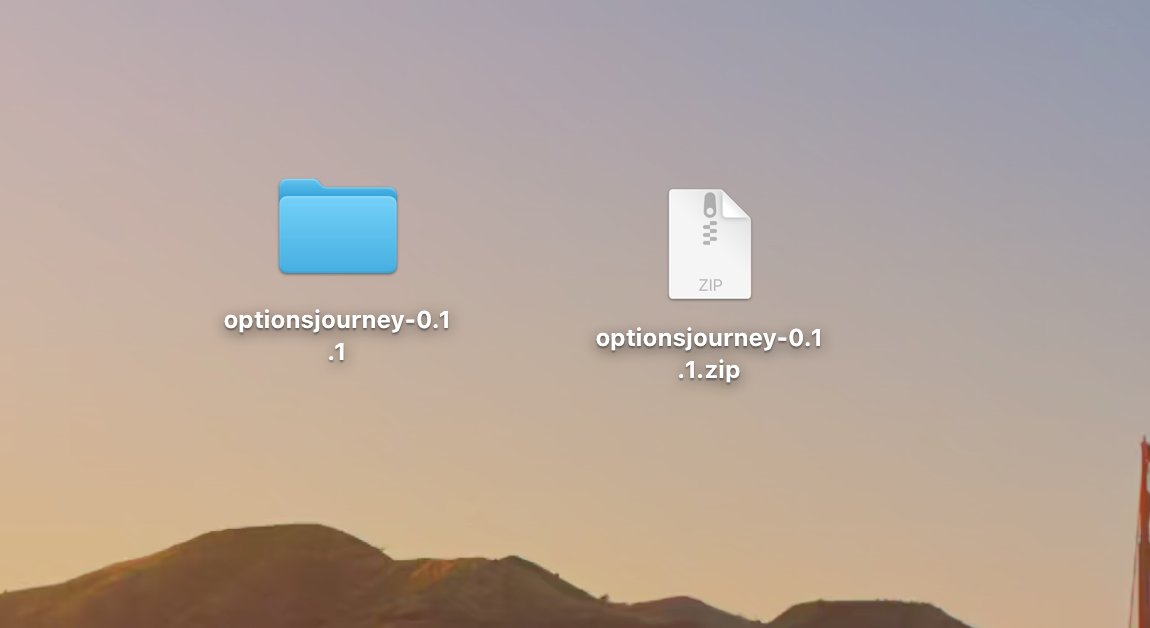
Open your Downloads folder and double-click the zip to unzip it.
-
Open the new folder, then scripts, and double-click Install OptionsJourney for Mac.command.
- Usually it just runs. If macOS says it "could not verify" the file or that it's from an unidentified developer, click Done, open System Settings → Privacy & Security, scroll down and click Open Anyway next to Install OptionsJourney for Mac.command, then confirm with your password. (On macOS 14 or older: right-click the file, choose Open, then Open again.)
- If a box asks to install "command line developer tools", click Cancel: the app doesn't need them.
-
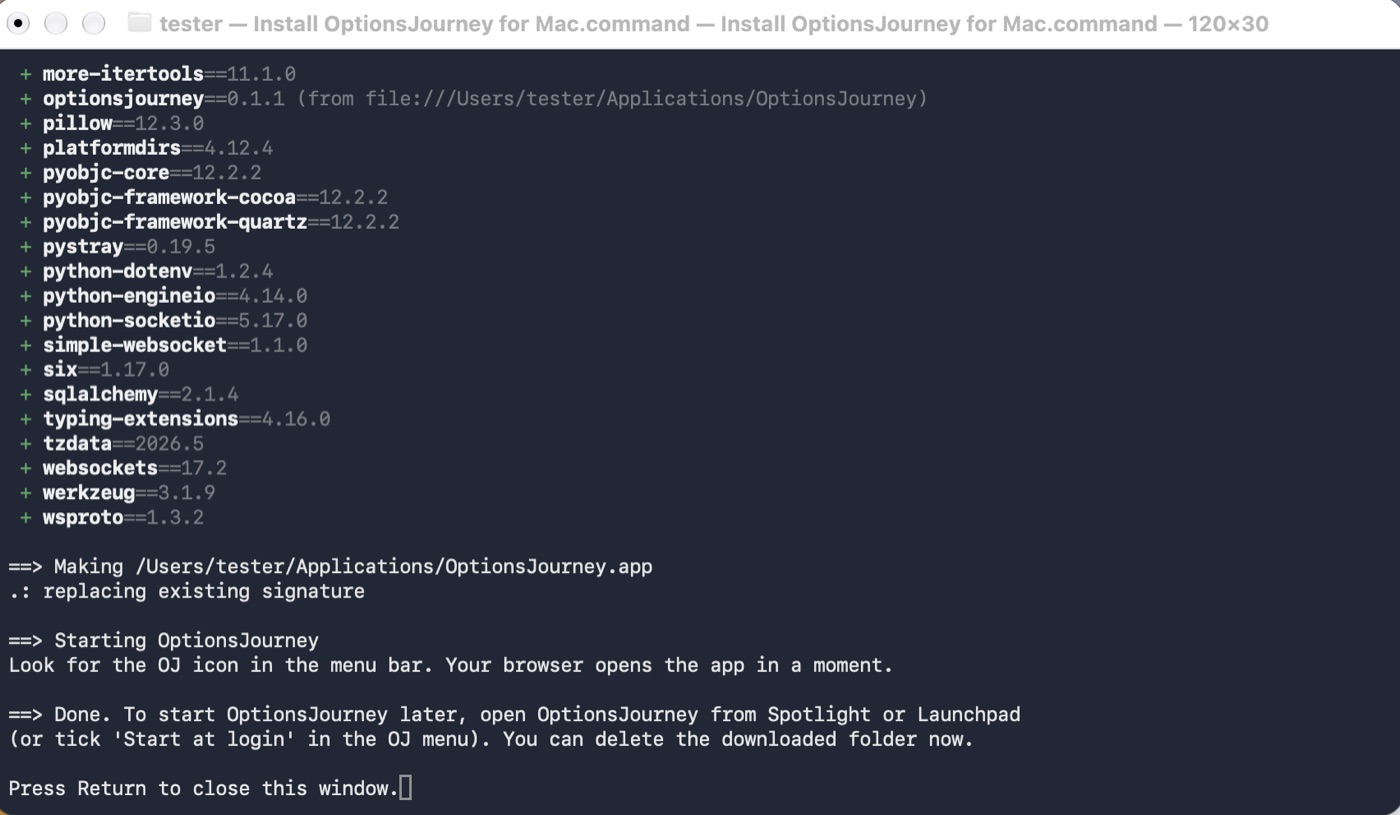
A Terminal window shows the progress. The first install downloads Python and takes a minute or two.
-
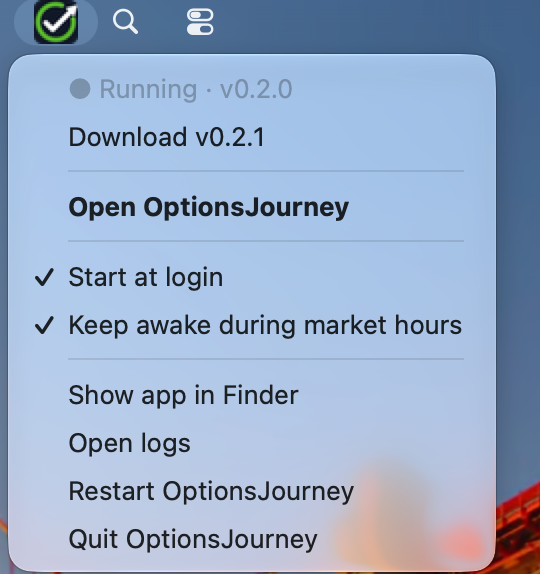
When it says Done, press Return to close the window. A green check-mark icon appears in the menu bar at the top right of the screen, and the app opens in your browser. The setup guide takes it from there.
Click the icon any time for the OJ menu:
The app is installed in Applications/OptionsJourney inside your home folder, so you can delete the zip and the unzipped folder afterwards. To start it again later, open OptionsJourney from Spotlight (⌘ Space) or Launchpad.
Where things are
- The app: the folder above. Show app in Finder / Explorer in the OJ menu opens it.
- Your data (trades, bots, settings, backups) is kept separately, so updating or reinstalling the app never touches it:
AppData\Local\OptionsJourneyon Windows,Library/Application Support/OptionsJourneyon a Mac.- Moving it to another computer: quit OptionsJourney first, then copy the whole folder. While the app is open, recent changes sit in files next to
optionsjourney.db(ending-waland-shm), so copying only that one file can lose them. A backup (Settings → Backups) is always a complete copy on its own. - Keep it on this computer's own disk, not in Dropbox, iCloud Drive, OneDrive or a network folder. Those can damage the database while the app is using it.
- Moving it to another computer: quit OptionsJourney first, then copy the whole folder. While the app is open, recent changes sit in files next to
- Logs: a
logsfolder inside your data. Open logs in the OJ menu opens it. - Broker logins are kept in the computer's own password store (Credential Manager on Windows, Keychain on a Mac).